How to upload a part list to Bricklink.com
If you've ordered only the instructions of a model you'll receive a link to download the instructions as well as a "shipname.xml" file. This is a file you can upload to bricklink.com where you can then view, verify and order all the parts you need in order to build the model. Below you can find a step by step guide on how to upload the .xml file to the website.

Step one:
Go to the website "bricklink.com". Click on the "Log in or Register" button in the top right corner and either log in to your bricklink account or create an account if you don't have one already (it's free and doesn't take too much time)

Step two:
After you've logged in there should now be a new button called "Want" next to the Cart in the top right corner. Hover with your mouse over this button and click on the "Upload" button that popped out below.
Step three:
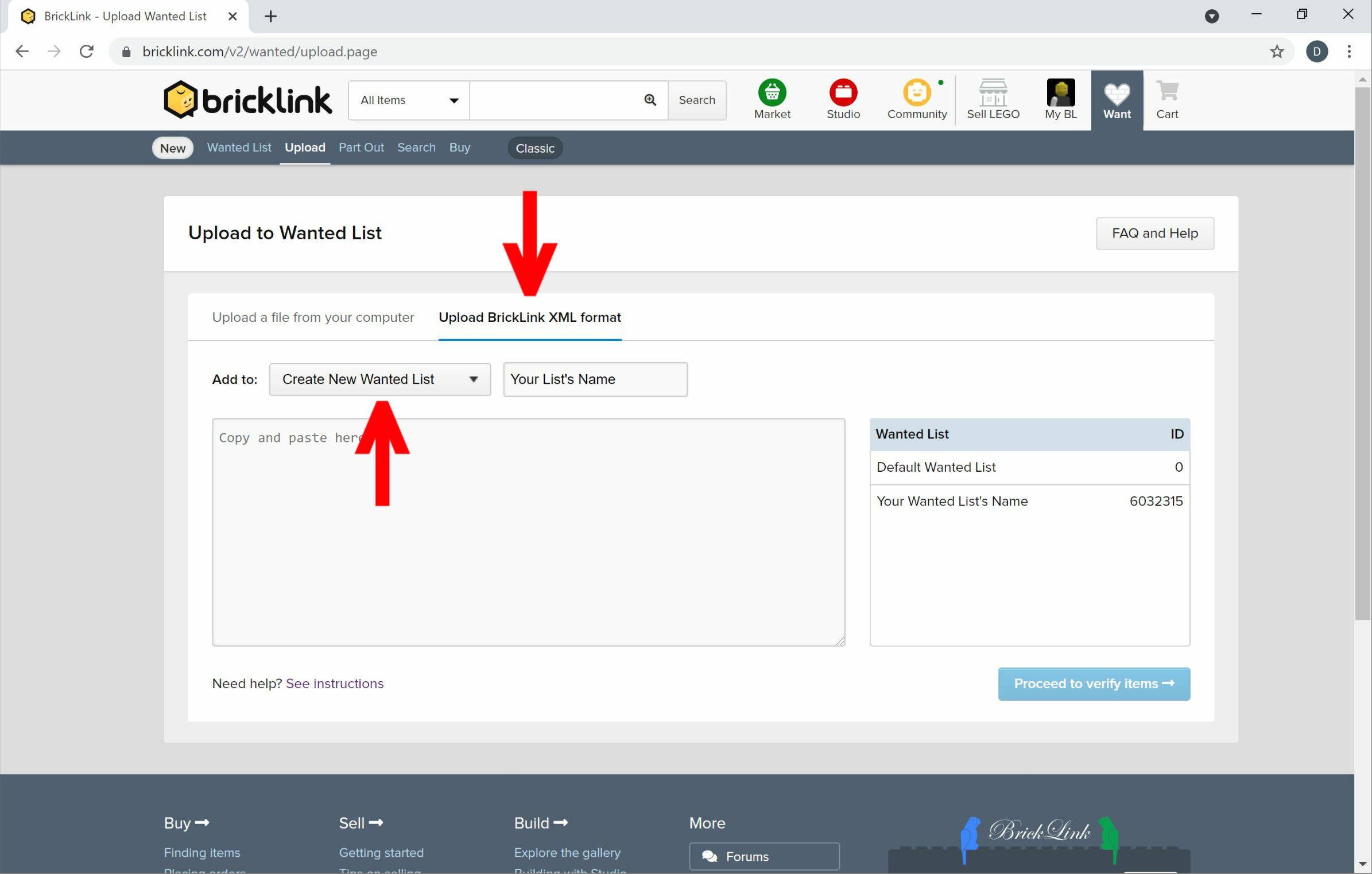
Click on the "Upload BrickLink XML Format" at the top of the page. Then also select "Create New Wanted List" just below and give your list a fitting name in the box next to it. I'd recommend a name by which you can later clearly identify the list (the ship's name for example)
Step four:
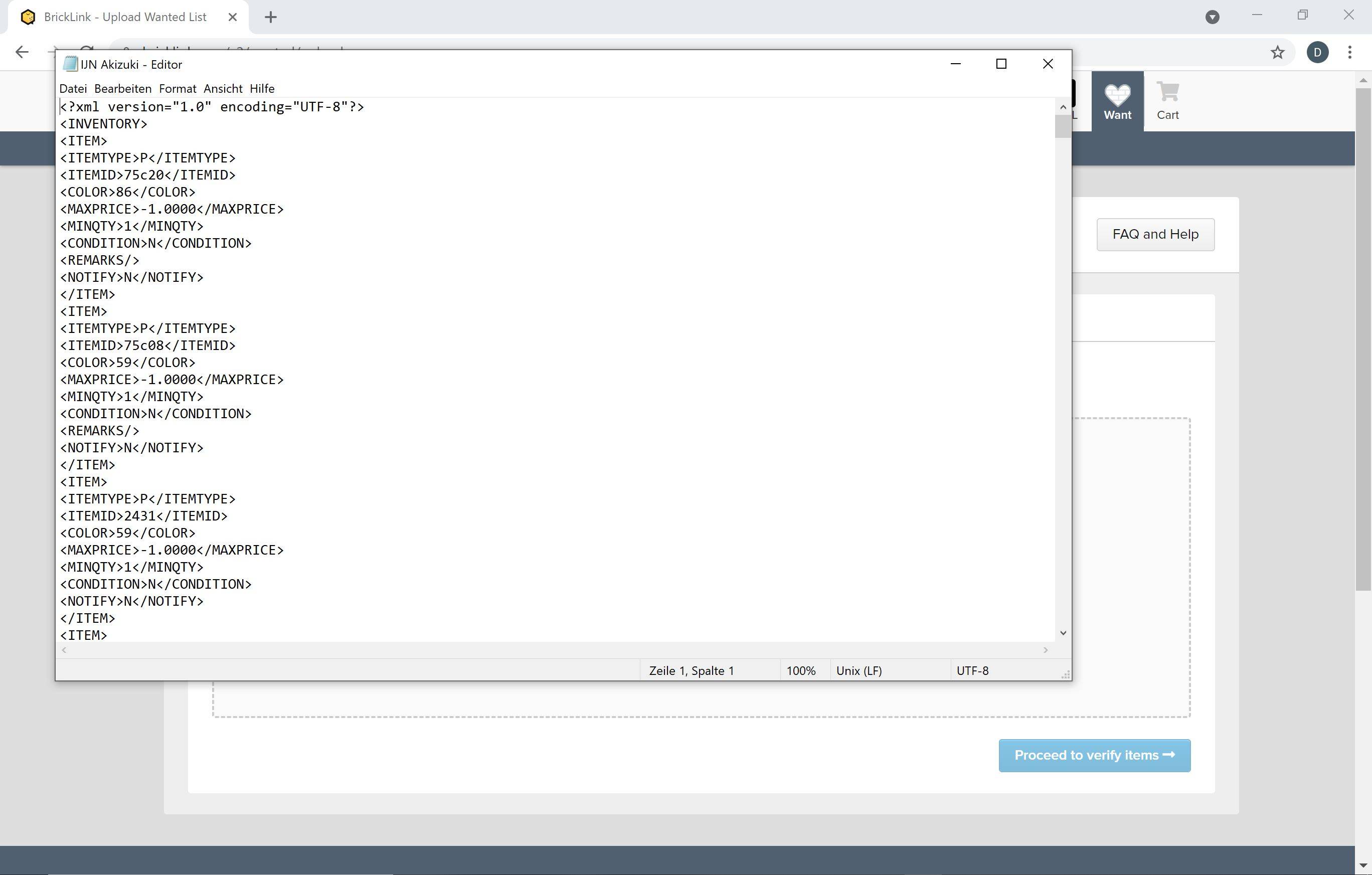
Now open the .xml file you received with a text editor of your choice. Copy all of the text and paste it in the text box from before. Then click on the "Proceed to verify items" button on the right side.
Step five:
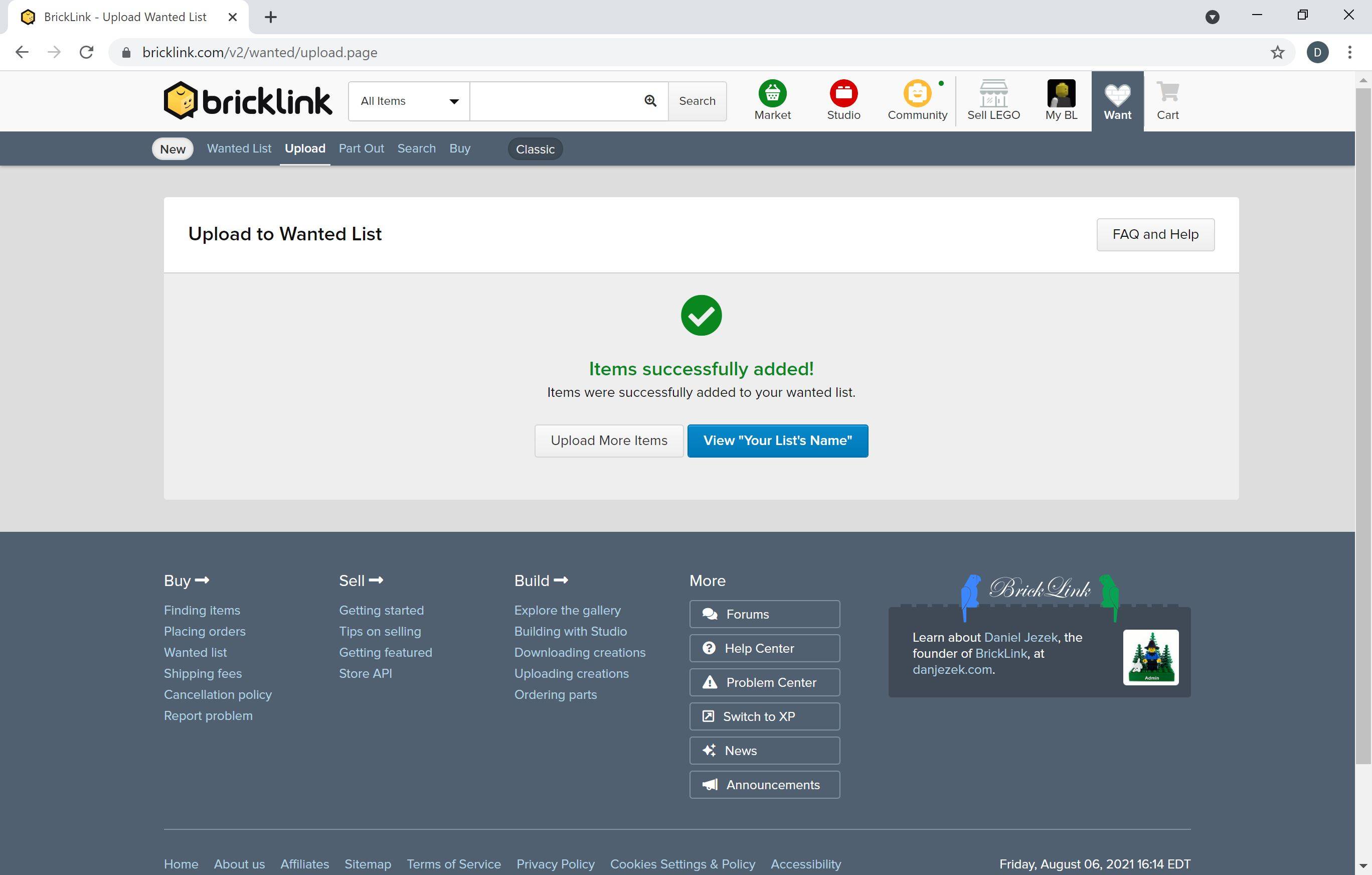
You can now see and verify all the parts you need for the model. Scroll down to the end of the page and select "Add to Wanted List". It should say "Items successfully added!" and you can now click the button to view your part list.
Step six:
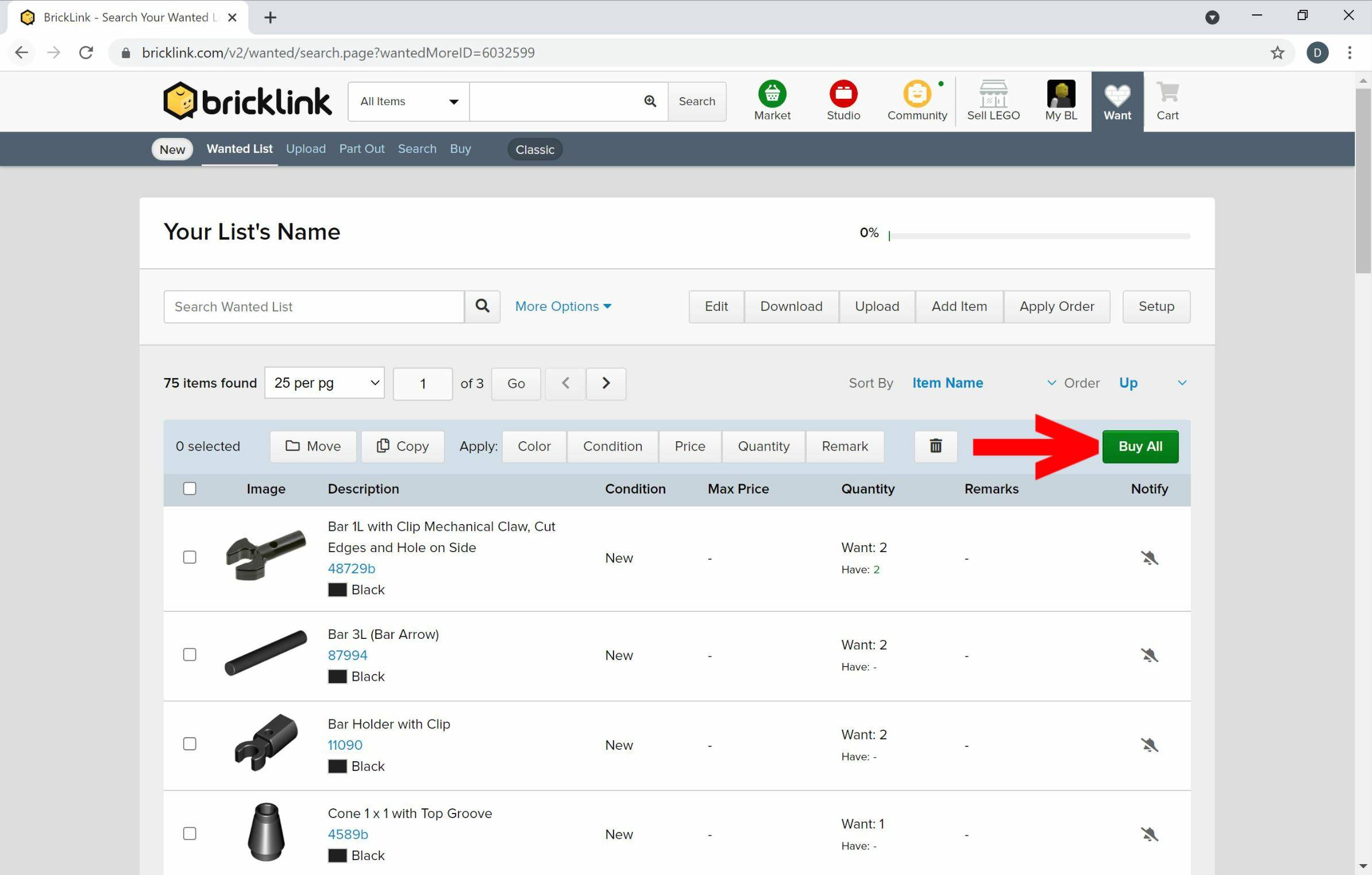
In your parts list you can now press "Buy all" in the top right corner in order to buy all the parts. If you'd like to you can also enter the parts which you already own.
Step seven:
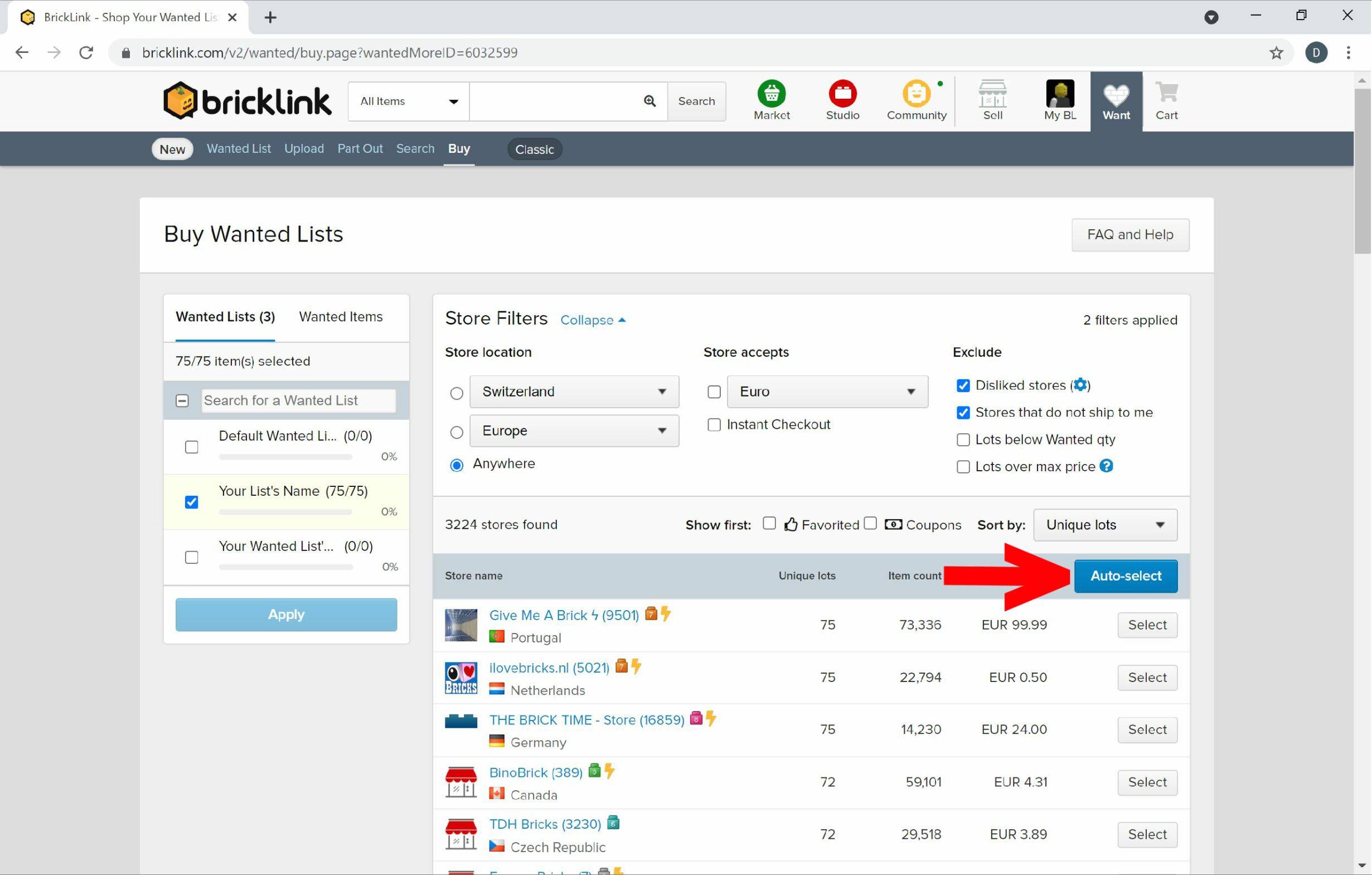
Above you can apply store filters to find stores more suited for your needs. Now you can select the stores you want to order the parts from. You can however also select the "Auto-Select" option, where Bricklink selects the stores for you.
STEP eight:
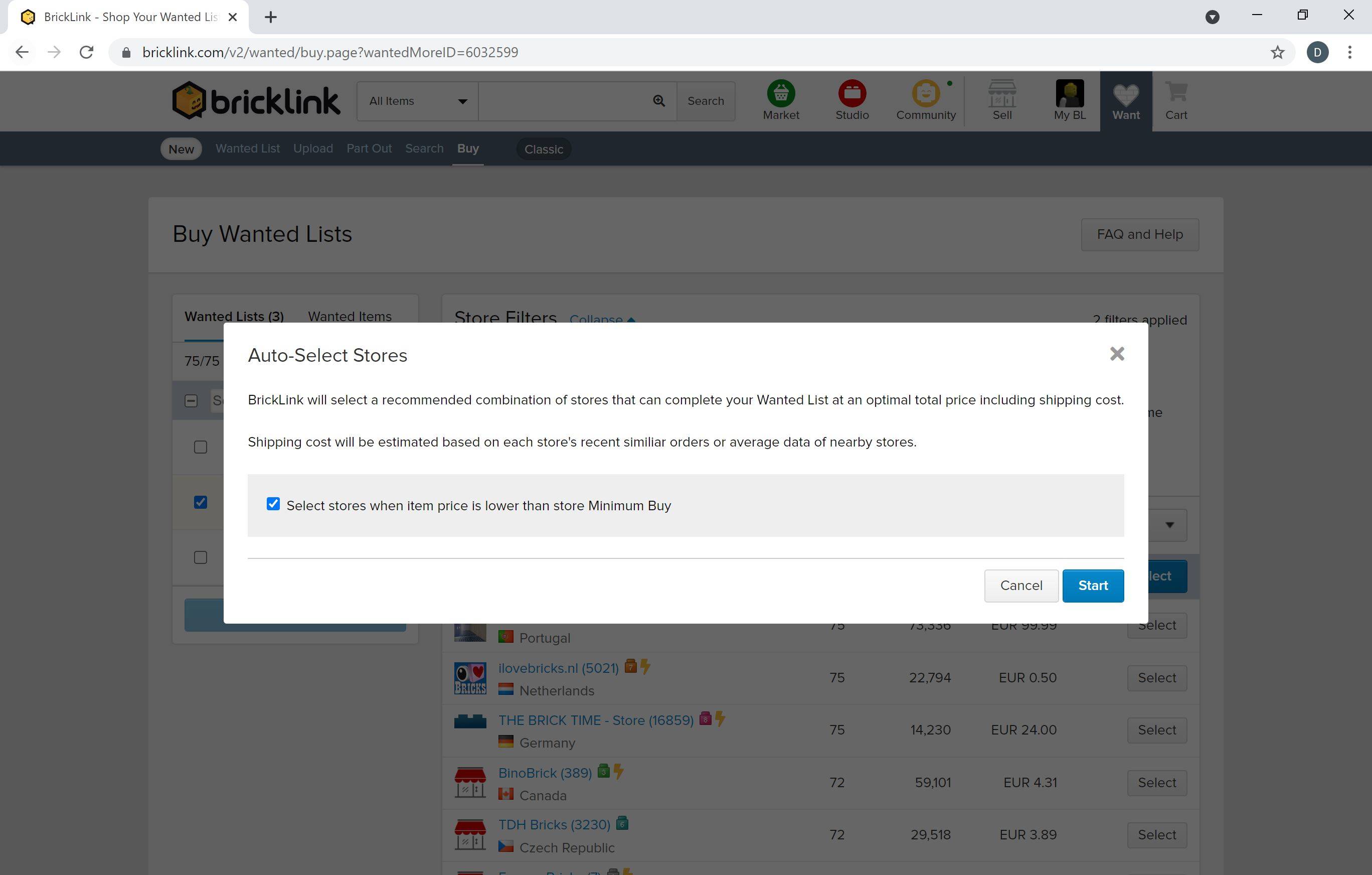
If you clicked on "Auto-Select" before, you should now see this menu. Click on the start button and wait for Bricklink to finish looking for all you necessary parts.
Step nine:
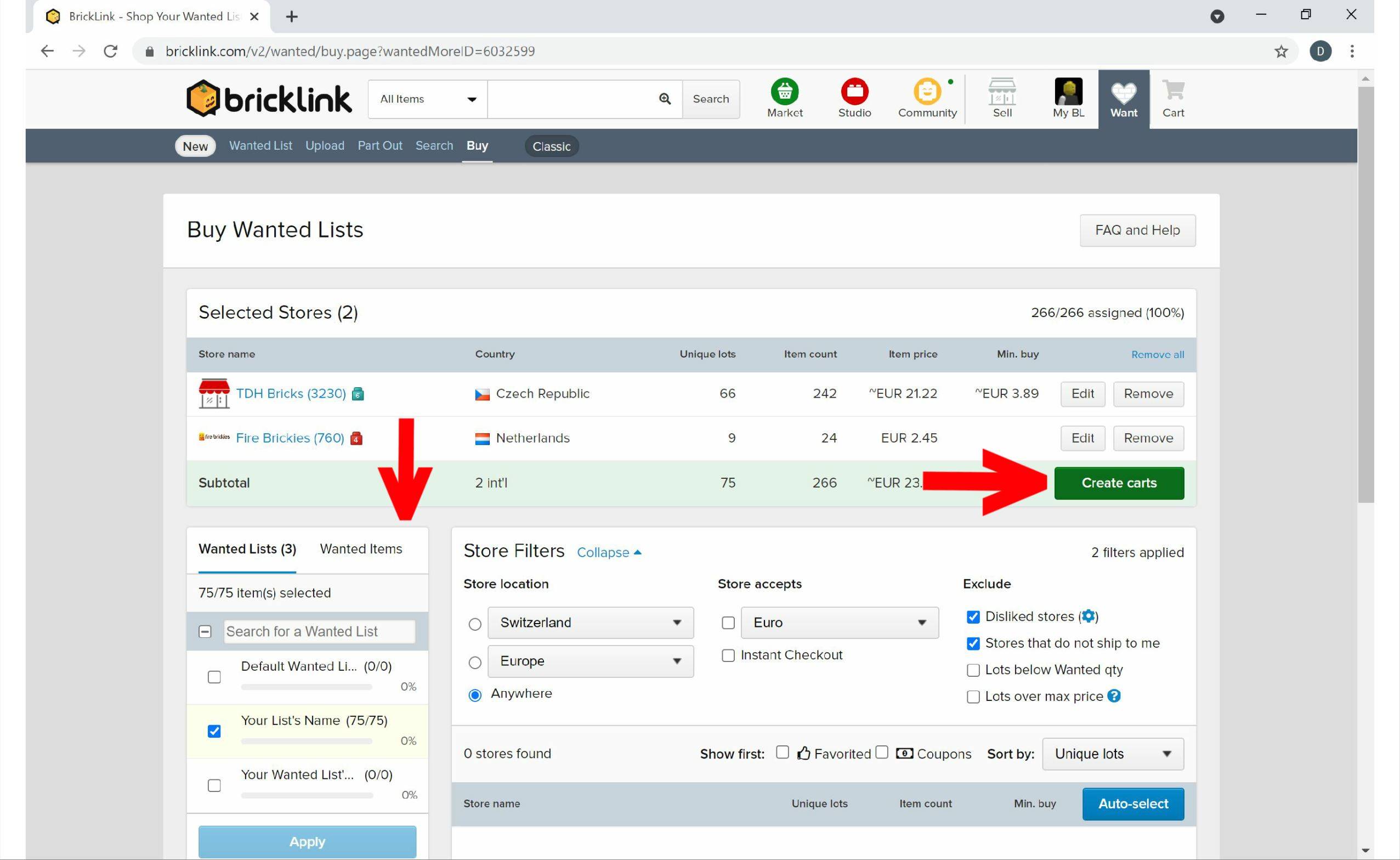
Bricklink now shows you all the stores it has selected for you. Check on "Wanted Items" if it really selected all the parts you need. If there are no more parts listed there you're good to go. After that click on "Create carts"
Step ten:
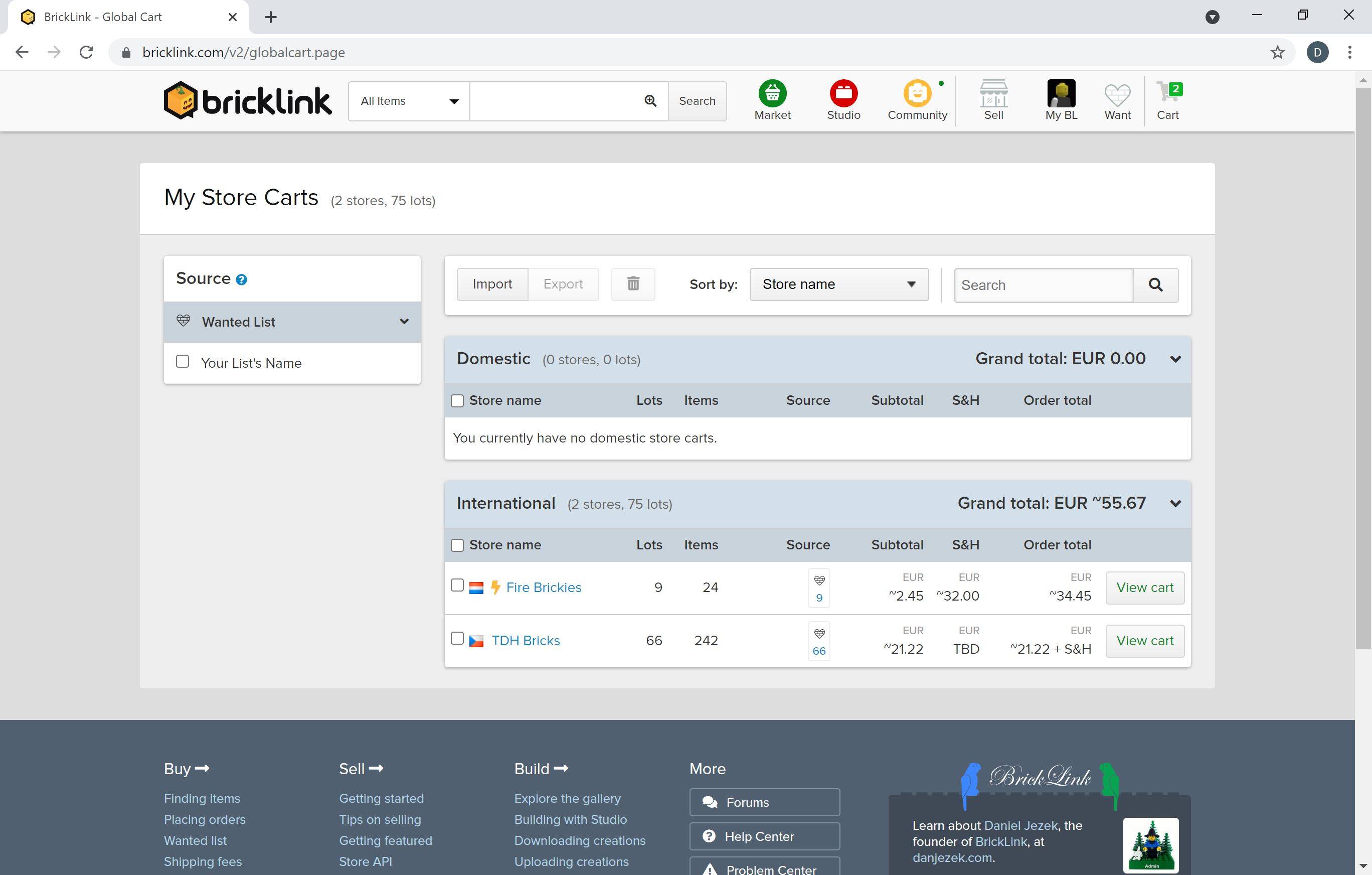
If you click on "Cart" in the top right corner you can now see all the stores Bricklink selected for you and the total cost of it. Remember that sometimes shipping fees might not have been added yet. Click on view cart to be directed to the stores page to checkout.
Congratulations! You've finished ordering all the parts and you're now ready to build your model as soon as you've received all the parts. If something went wrong along the way or you have any other questions, feel free to contact me via brickships.ch@gmail.com or via my Instagram account and I'll be happy to help you out.
LEGO® is a trademark of the LEGO Group of companies which does not sponsor, authorize or endorse this site or these products
This website uses cookies. Here you can choose which cookies you want to accept and change your selection at any time. If you click on 'Agree', you agree to the use of cookies.